01
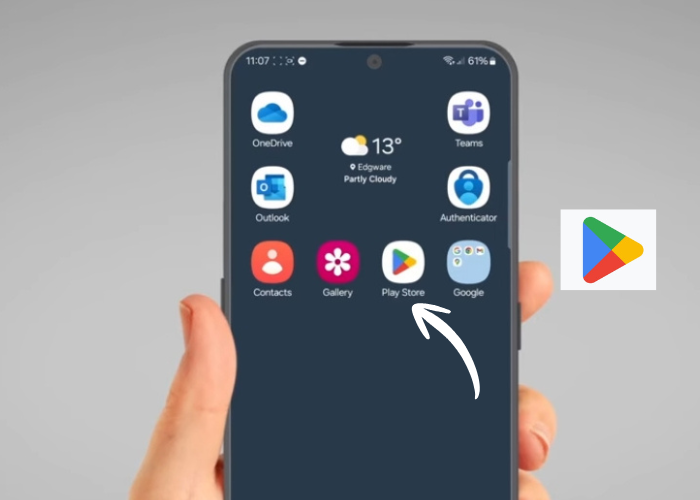
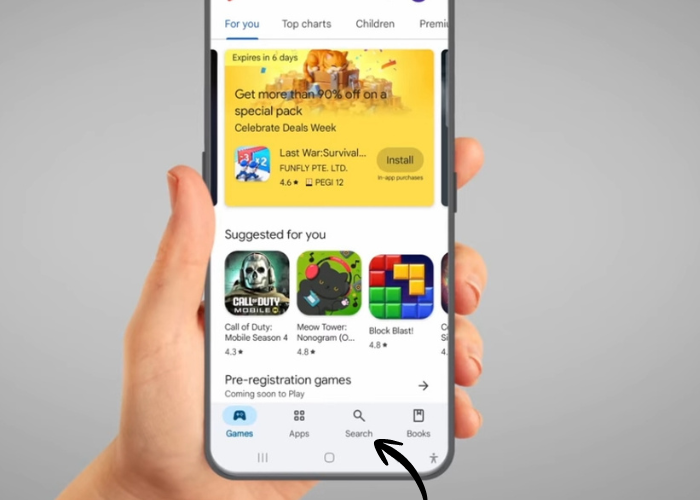
'Voice Access' app does not come installed on Android. So to install it, you will need to unlock your device and tap on the ‘Play store’. It is a white icon with a colourful triangle on it.
02
Tap 'Search' on the bottom of the screen.
03
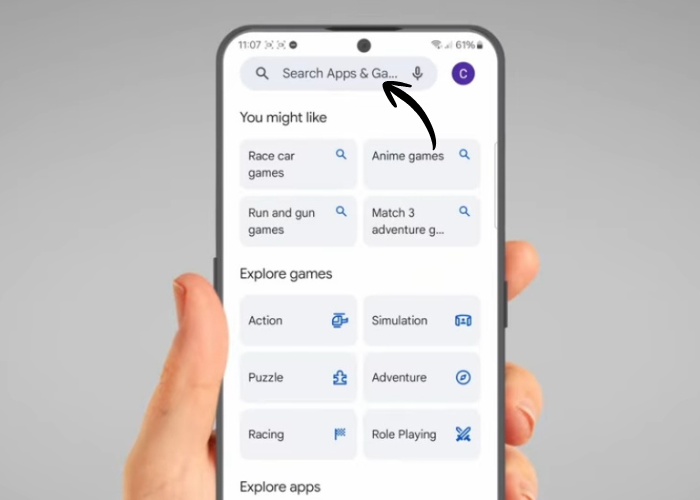
Then tap the search bar at the top of the screen.
04
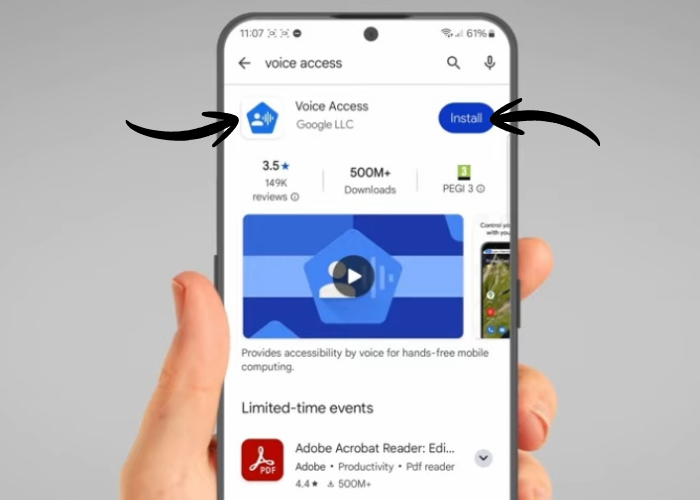
Type 'Voice Access' in the search bar and press search. The app you are looking for looks like this. Click on 'Install' and wait for it to download.
05
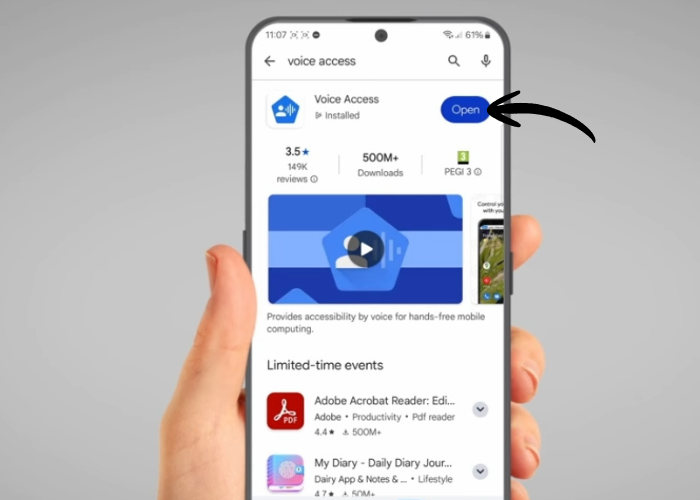
Once the app has finished downloading, tap on 'Open'.
06
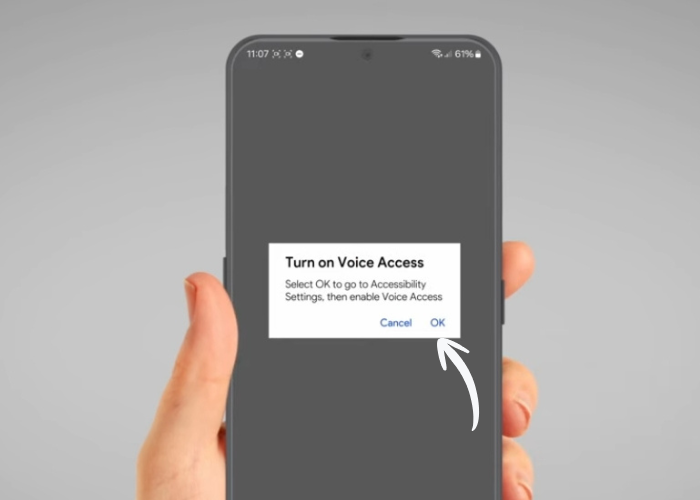
Tap 'OK' on the pop up and you will see the mainpage.
07
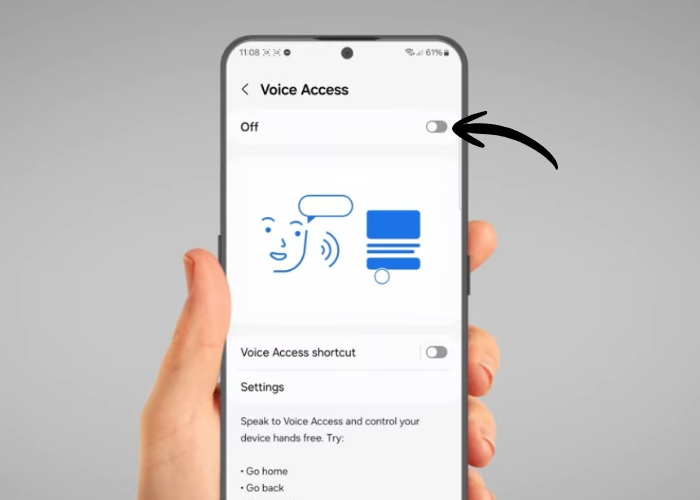
Tap the switch on the top of the screen to activate 'Voice Access'.
08
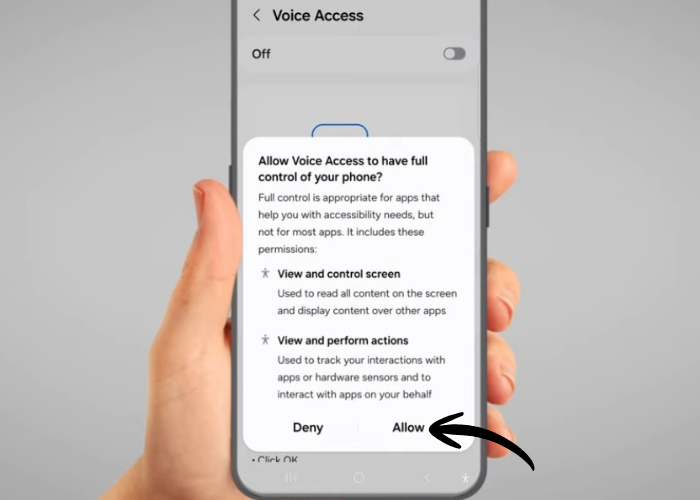
Then tap “Allow” to grant the app permission to work on your phone.
09
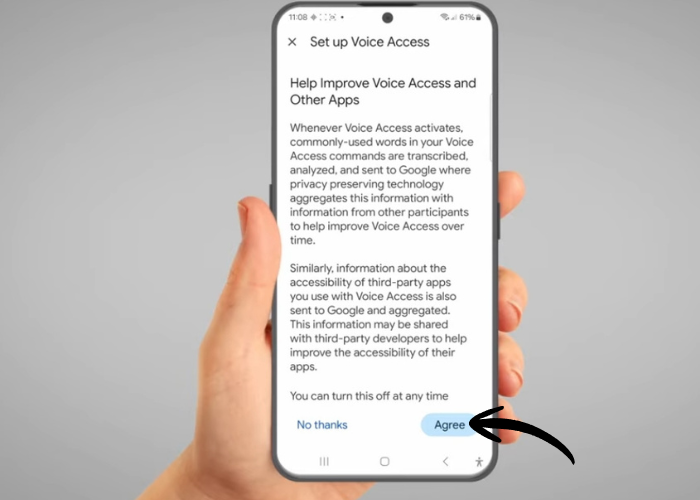
The app will ask you if you want to share audio data with Google. Tap 'Agree'.
10
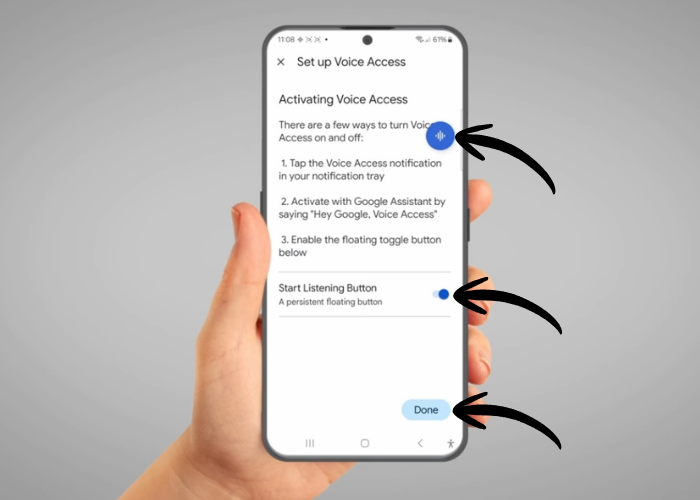
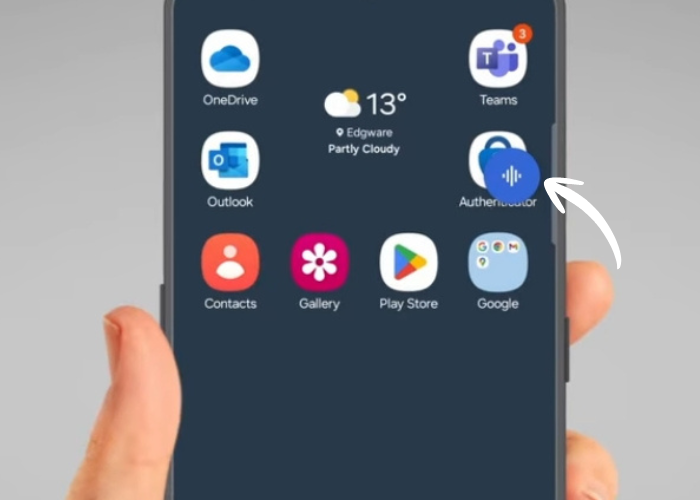
Now, tap the switch next to 'Start Listening Button'. A blue button with a white soundwave on it will appear. Tap 'Done'.
11
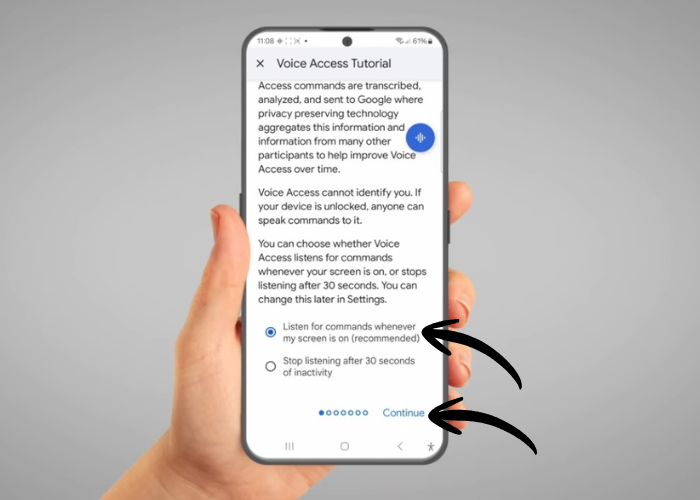
Scroll to the bottom of 'Voice Access Tutorial', select 'Listen for commands whenever my screen is on (recommended)'. This will allow your phone to listen even when you are not actively using it. Tap 'Continue'.
12
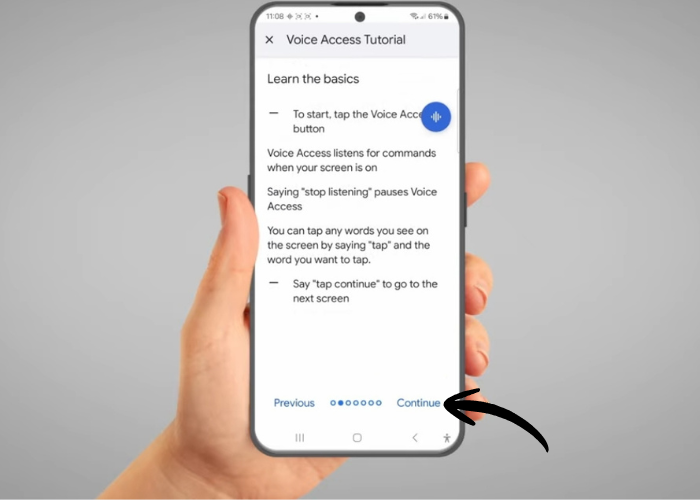
You can read through the tutorial. Tap on 'Continue' button until end of tutorial.
13
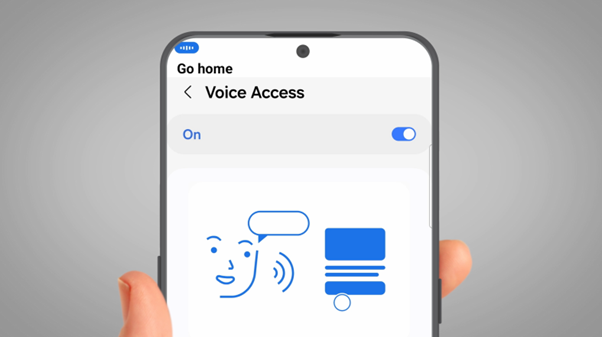
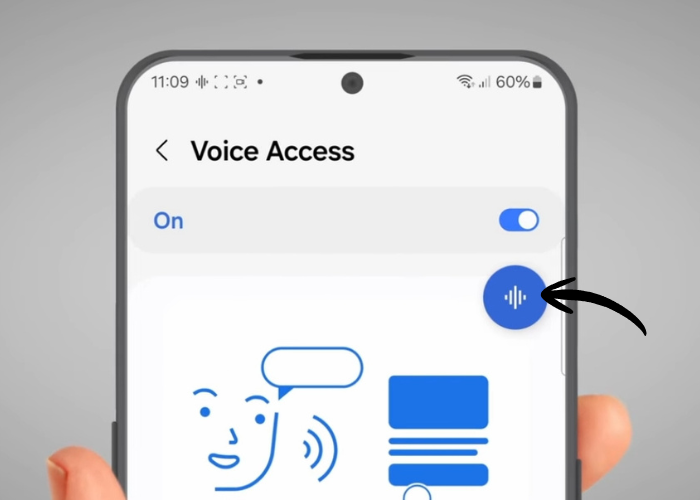
When you get to this page, tap on the blue button to make your phone start listening. To go back to the home screen, just say "Go Home".
14
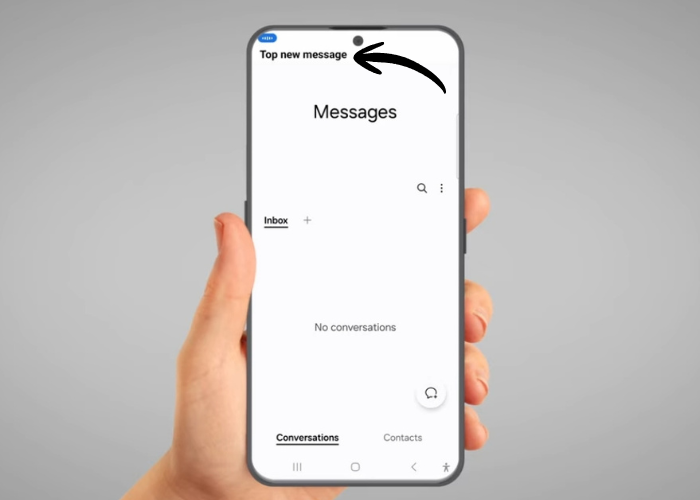
Let’s send a text message. Say “Open Messages.” Then say “Tap New Message.” What you say will appear written at the top.
15
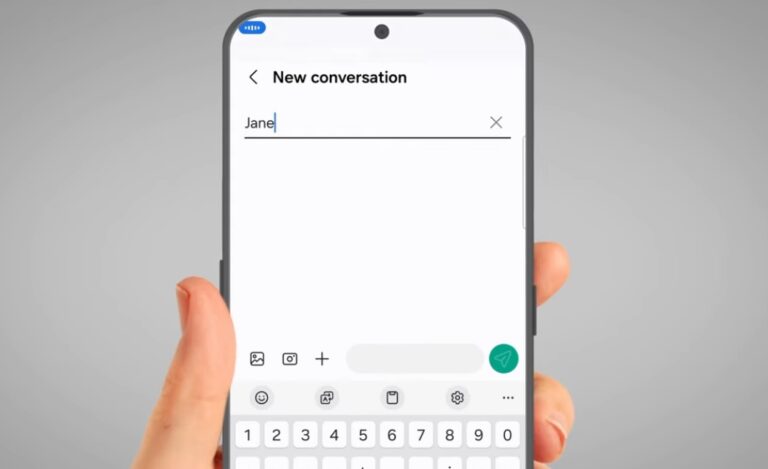
Say the name of the person you want to send message to, e.g. Jane. Say "Tap Jane".
16
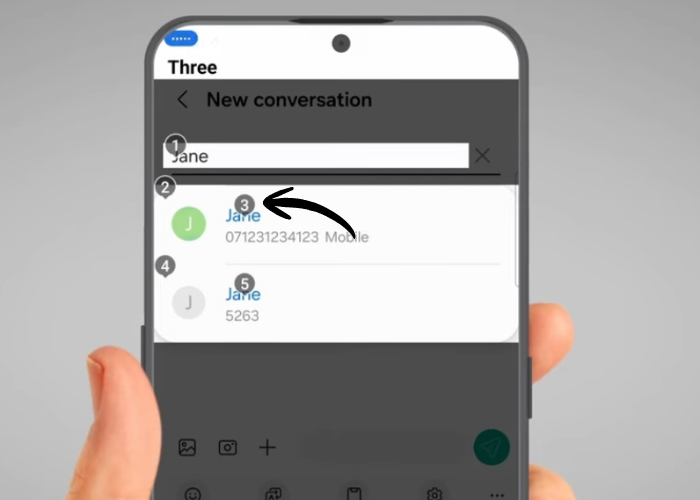
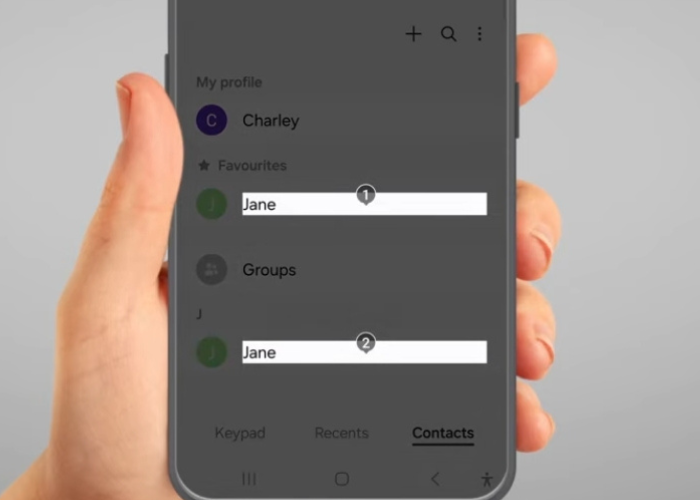
If contact names are repeated, numbers will appear next to them. The number corresponds to the location you want to press, e.g. 3.
17
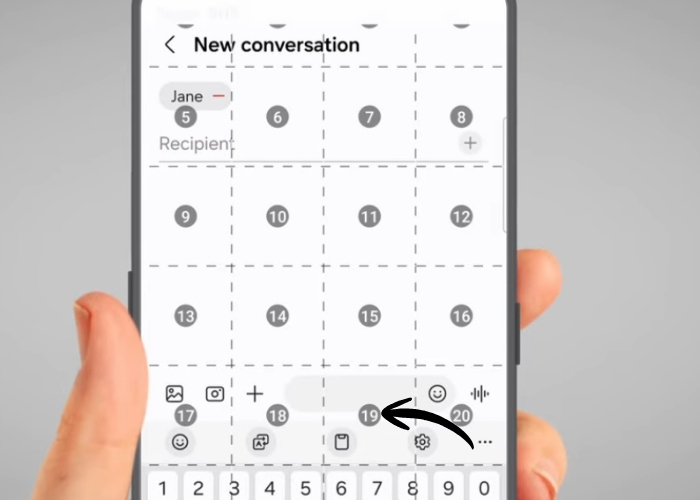
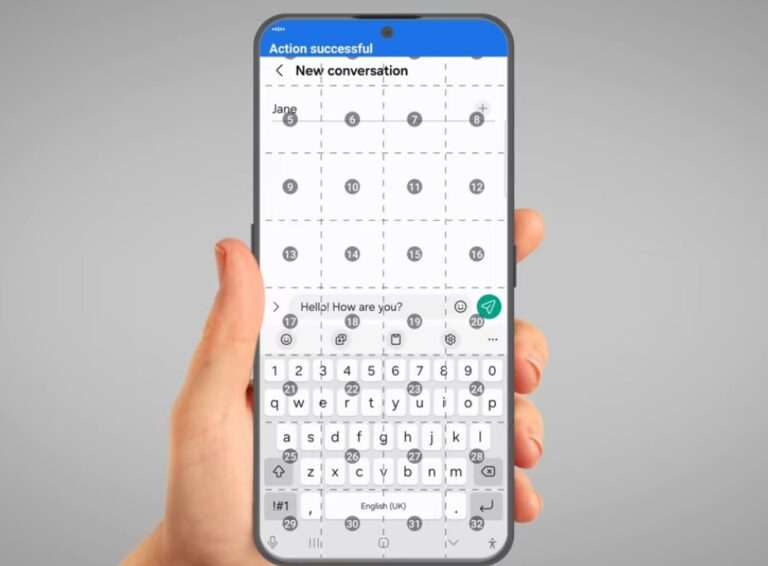
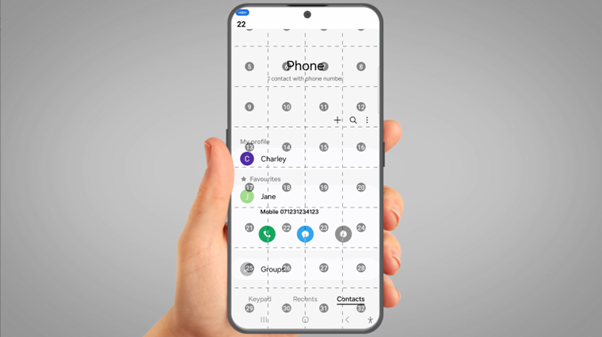
Now, say "Show Grid". To use the grid, we say the number of where we want to tap. In this case, we want to write a message, so we say “19”.
18
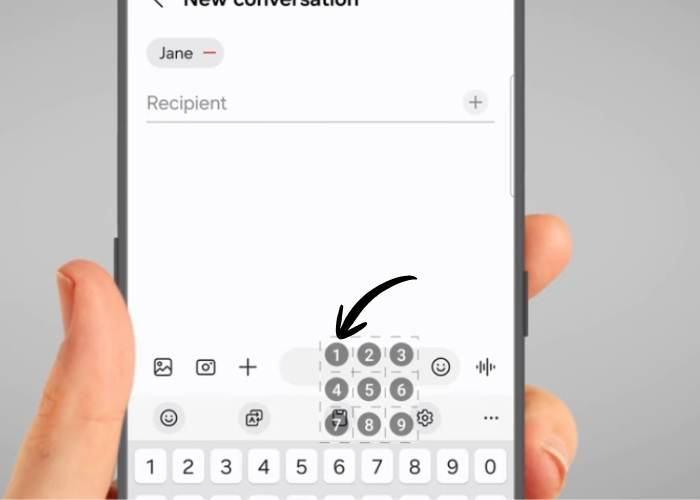
This displays a smaller grid. Select the area you want to tap on. In this case, say “1” so we select the message box.
19
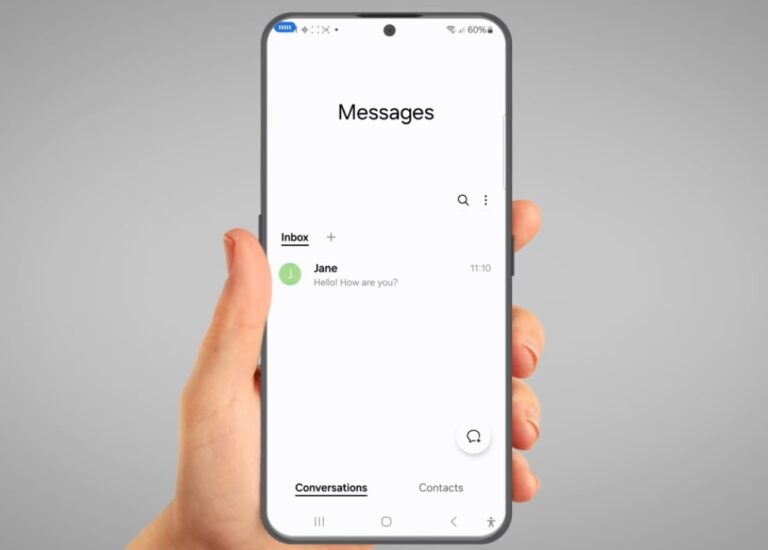
Now, start saying the message you want to send. Example: "Hello! How are you?". Then say, "Tap Send" to send message.
20
Say “Stop showing grid” to turn off grid. To go back to home screen, say "Go Home".
21
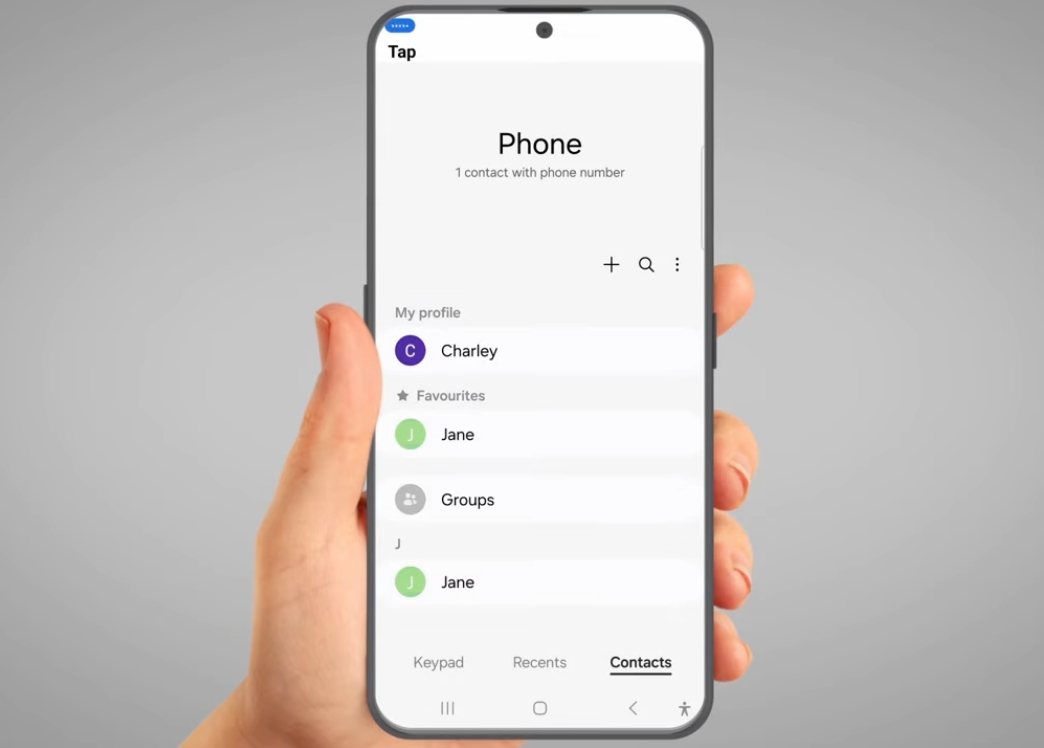
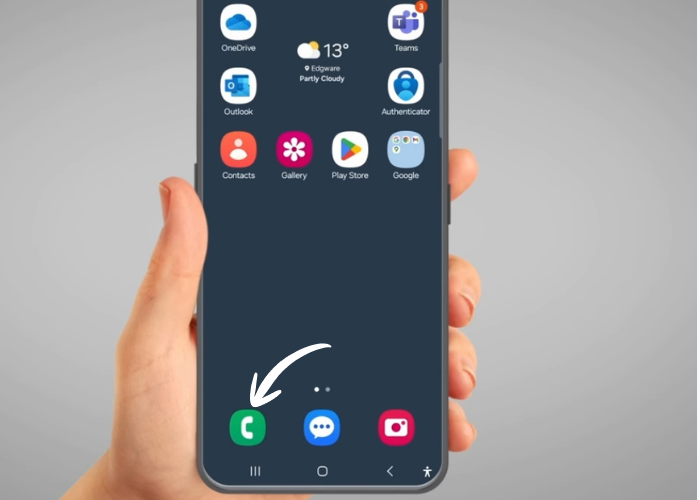
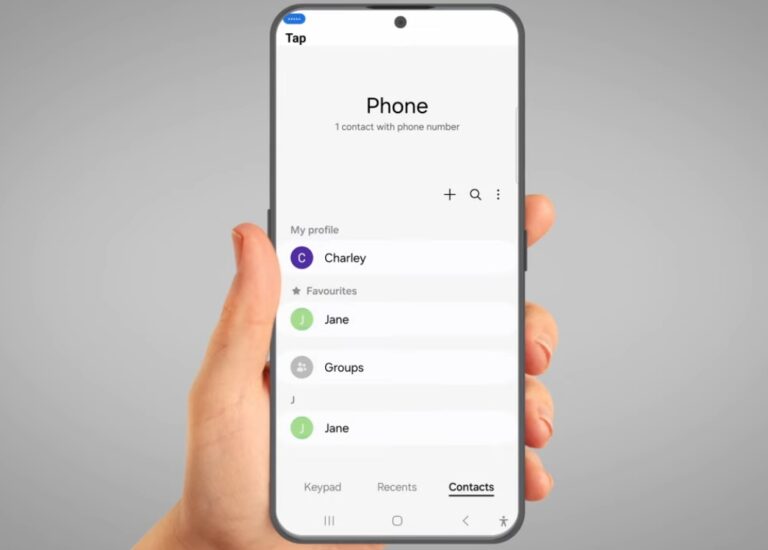
Now, let's make a phone call. Say, "Tap Phone".
22
25. Say “Tap Jane”, or the name of the person you want to call.
23
If contact names are repeated, numbers will appear next to them. Each number corresponds to the option you want to select. For example, say 1.
24
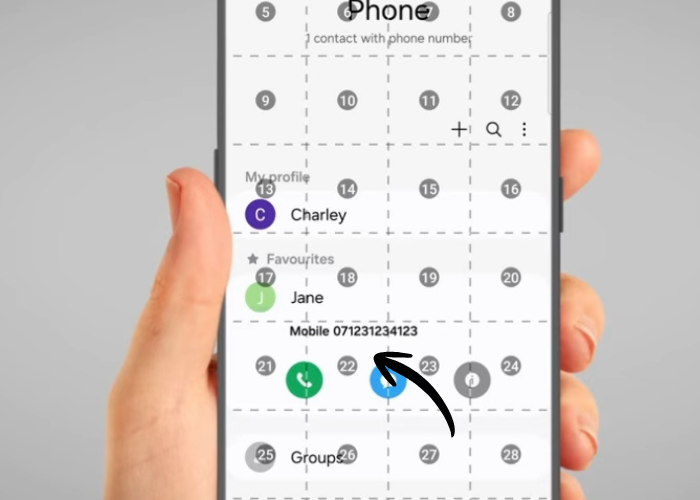
Then say, "Show Grid". Say “Tap 22”, or the number that corresponds to the location of the person’s name you want to call.
25
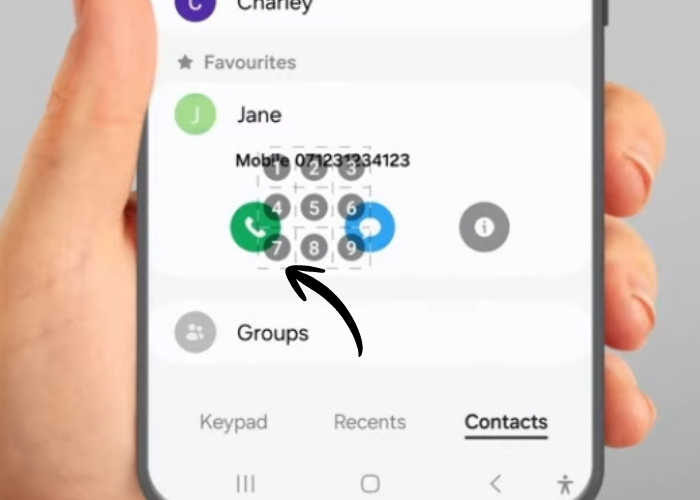
When the smaller grid appears, say the number that corresponds to the call button. For example, “Tap 7".
26
Say “End call” when you want to hang up. Then say, "Stop showing grid" and "Go home" to return to the home screen.
27
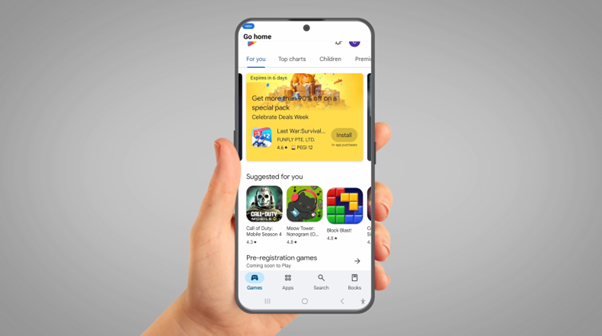
Let's open and close an app. Say "Open Play Store" or any other app you want to open. Say "Go home" to return to the home screen.
28
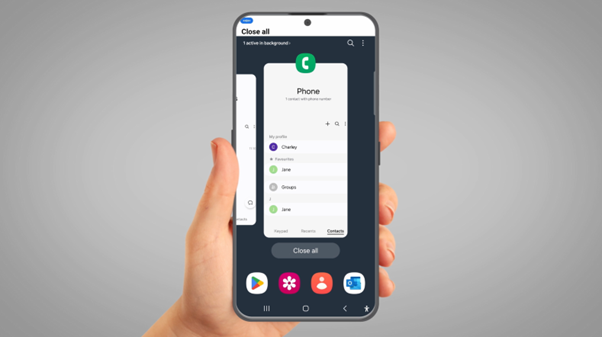
To show your recent open app, say "Show recent apps".
29
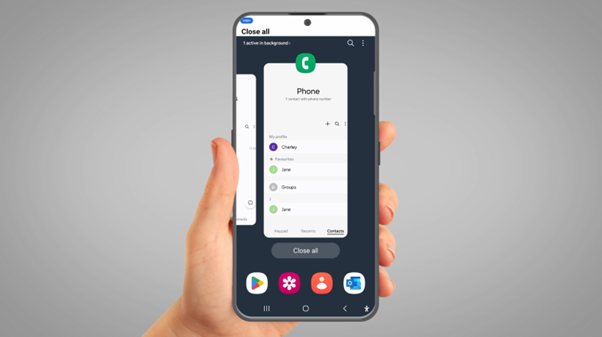
Say “close all” if you don't want any of the recent apps open.
30
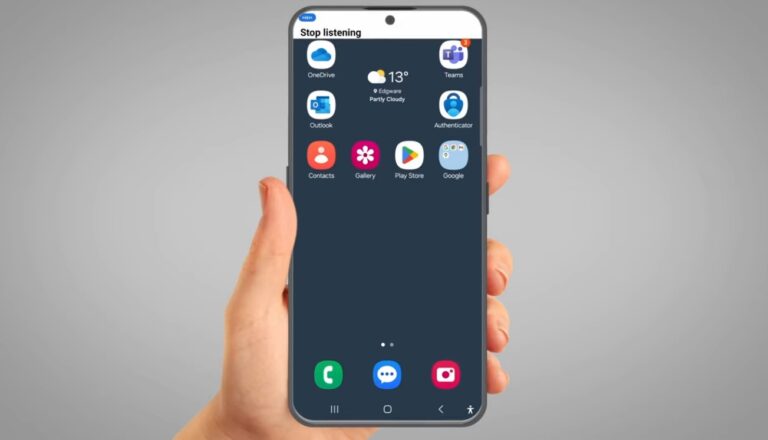
If you ever want to pause voice control, say “Stop listening”.
31
You can turn it back on by tapping on the blue circle on the side of the screen.
32
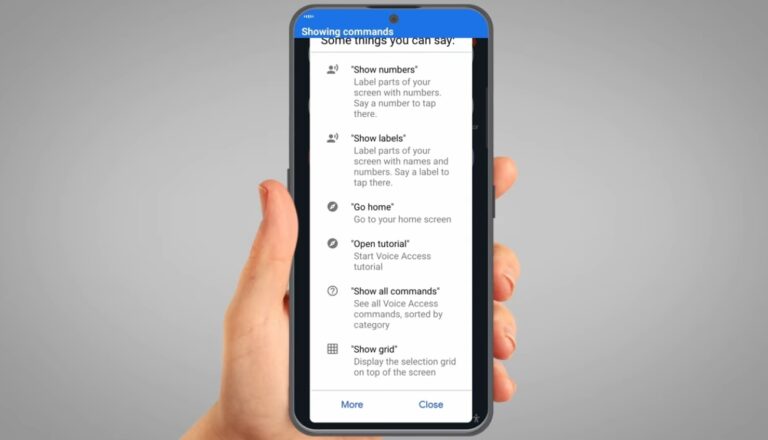
If you want to find out more about voice control commands, ask "What can I say?". The phone will you show you a list of commands



 Charley, with a background in teaching, has worked in both educational and community settings, specialising in helping older adults build confidence with technology. Her work has given her a real understanding of the challenges people face when learning new skills later in life, and she enjoys finding simple, practical ways to make technology feel less daunting.