
If you would like to book a tour or enquire about one of our homes, please click here

Touch Settings on Android

If you ever tap too quickly, double tap by mistake, or find it tricky to press your screen exactly how your iPhone expects, the Touch Accommodations feature can help. These iPhone accessibility settings allow you to adjust how your screen responds, giving you more time and control.

If you are using an iPhone, take a look at this video.

In partnership with


01
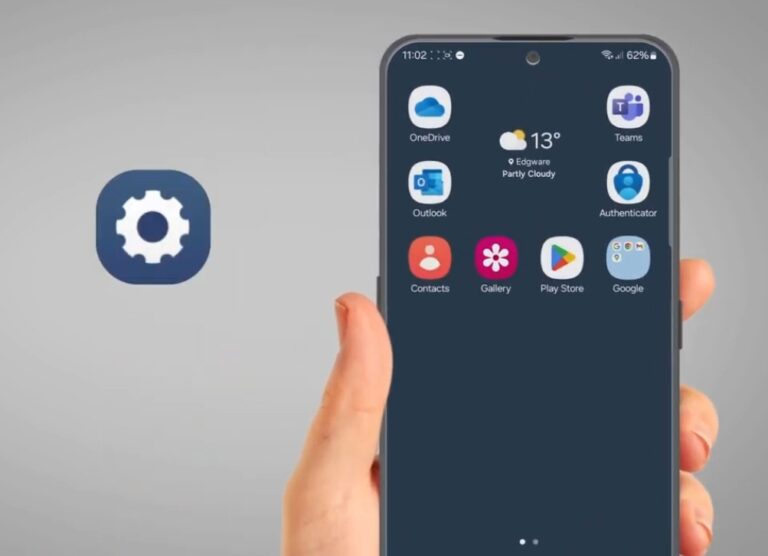
Find the ‘Settings’ icon and tap on it. It looks like a grey gear. You may need to swipe up and scroll down to find it. Tap to open it.
02
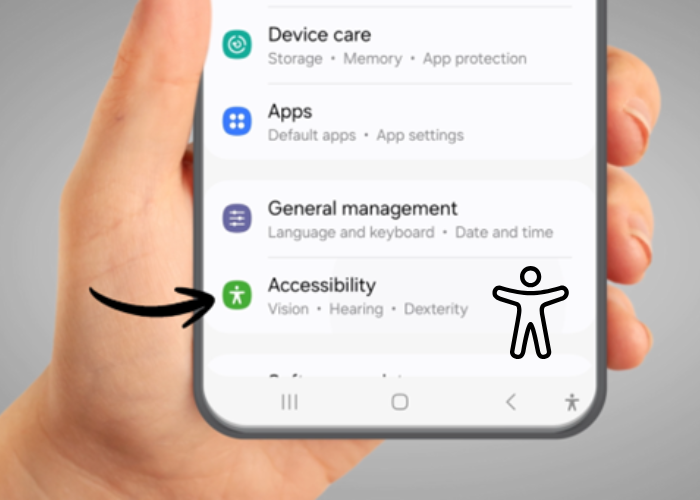
Scroll down and find ‘Accessibility’. The icon is a small person symbol and, depending on your phone model, it might have a blue or green background. Tap on it.
03
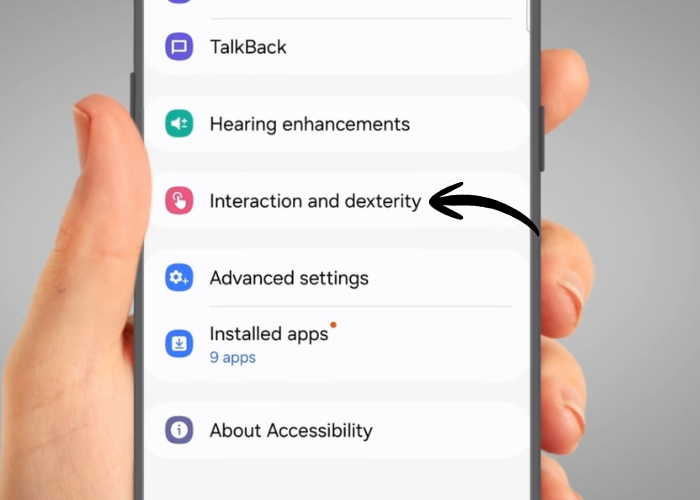
Find and tap on ‘Interactions and dexterity’.
04
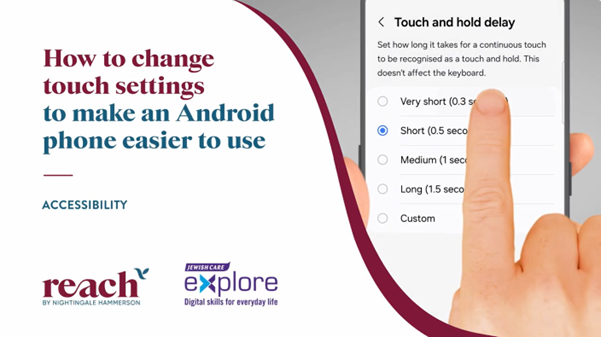
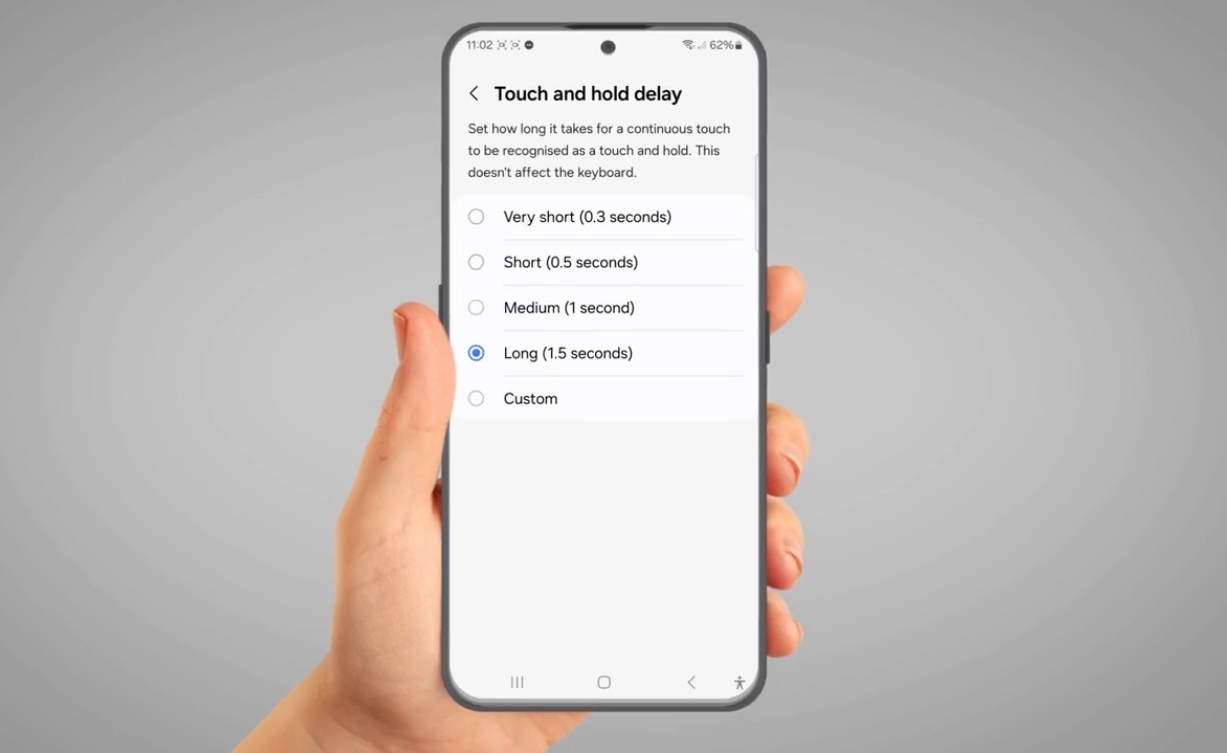
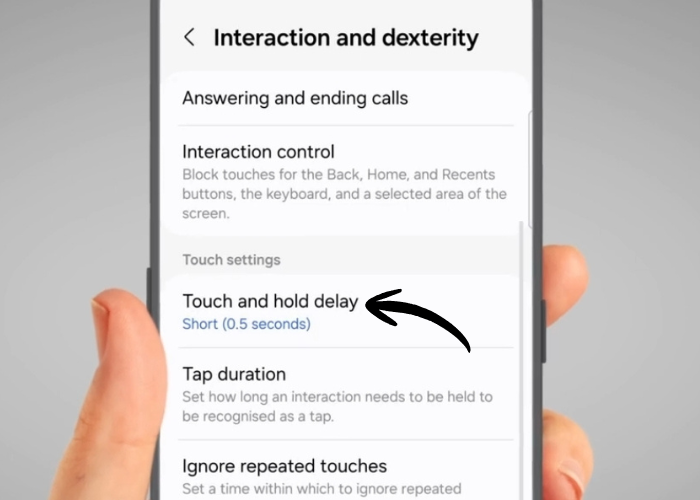
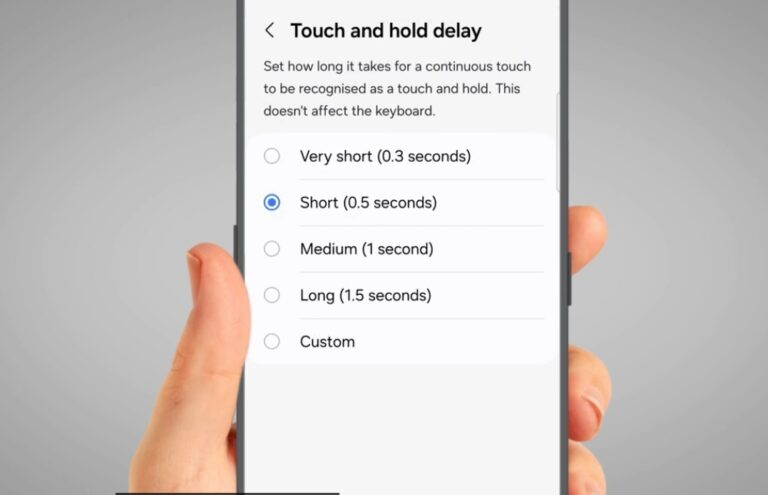
‘Touch and hold delay’ changes how long you need to touch the screen before it counts as a long touch. Tap on it.
05
Here you can adjust the timeframe by tapping on the one you prefer.
06
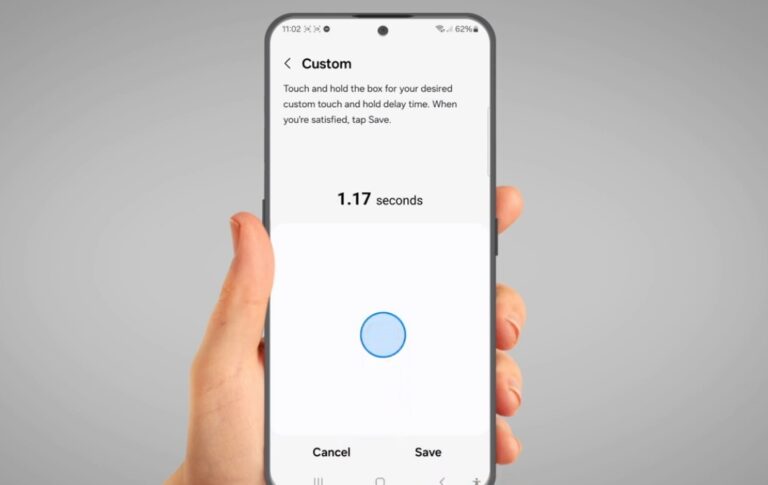
You can also customise your own ‘Touch and hold delay’ time by tapping on the ‘Custom’ button. Using this, input your own timing by pressing and holding the screen.
07
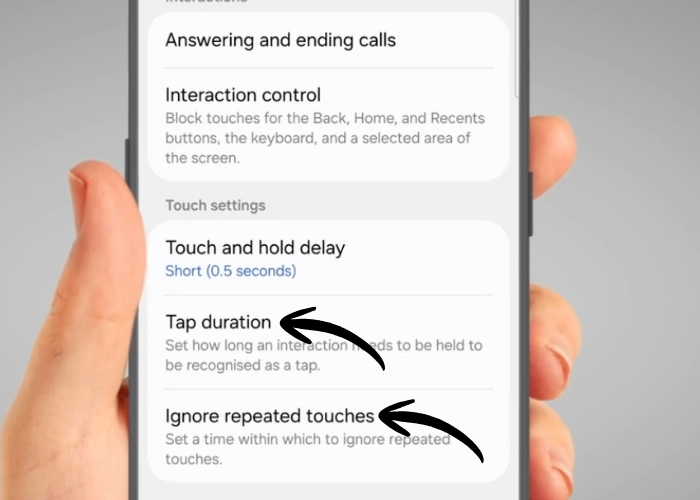
Other functions are 'Tap duration' and 'Ignore repeated touches'. These may not be available on older phones.
08
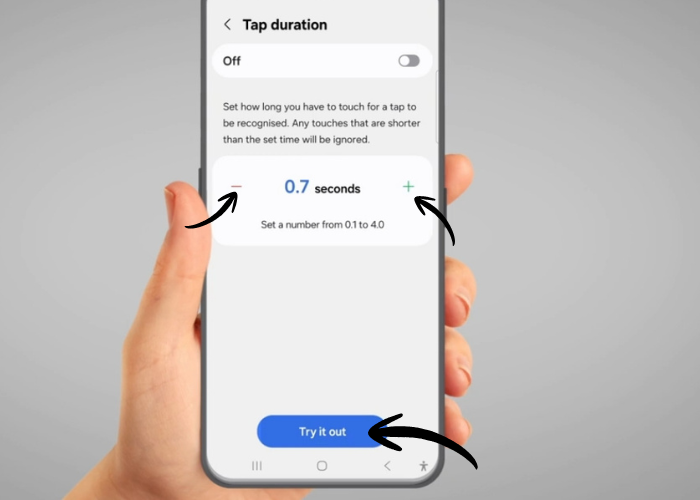
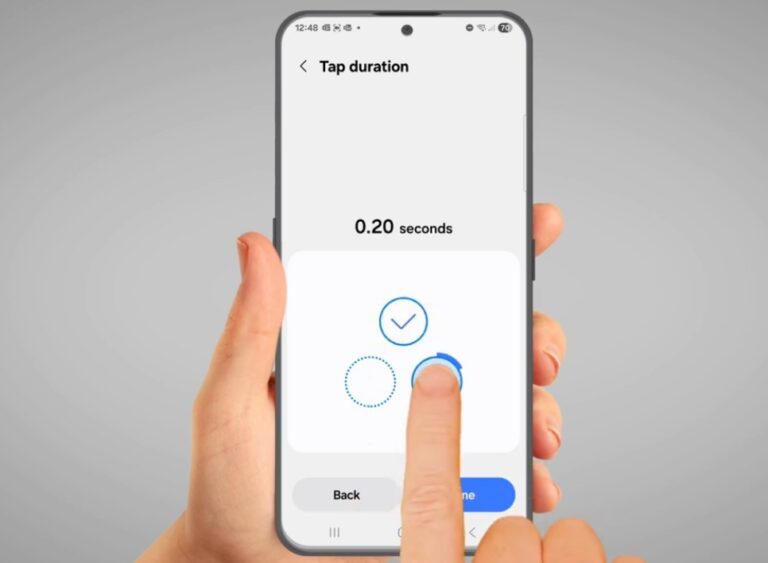
'Tap duration' allows you to adjust how long you have to touch the screen for a touch to be recognized. Use the plus and minus buttons to adjust the time. You can try the settings by pressing the blue button at the bottom.
09
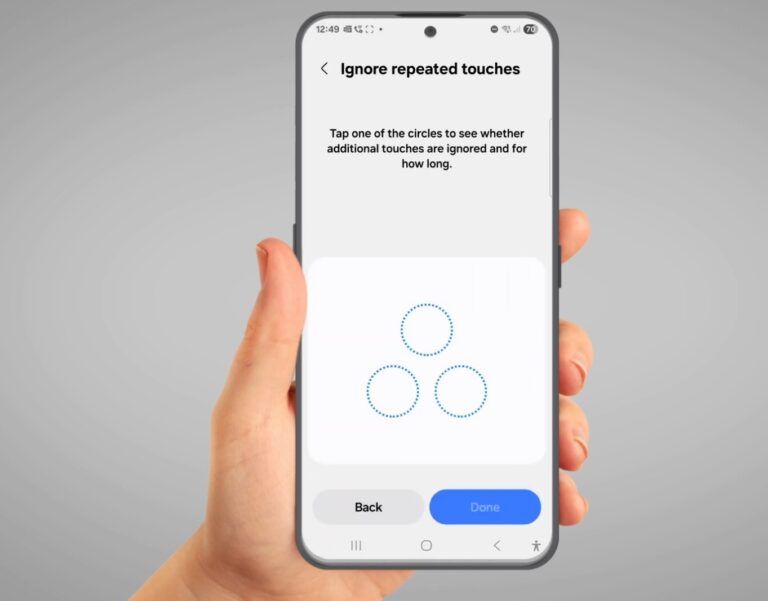
It will take you to a practice tool where you can tap 3 circles to test the touch duration you selected and make sure it feels right.
10
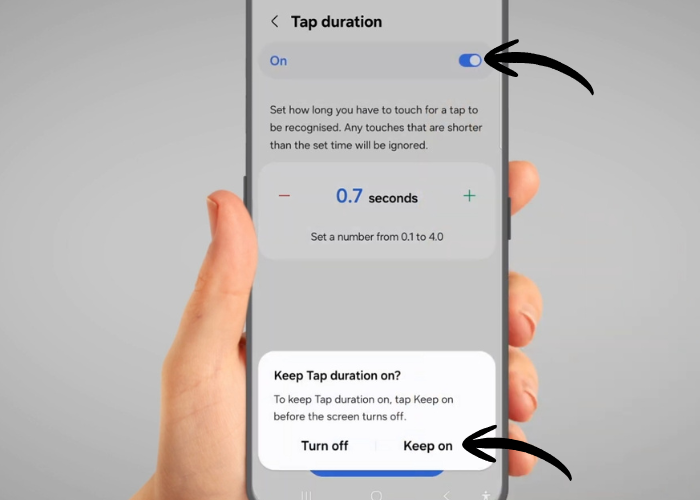
To turn 'Tap duration' on, tap the switch at the top of the screen. A notification will pop up, asking 'Keep Tap duration on?'. Tap 'Keep on'.
11
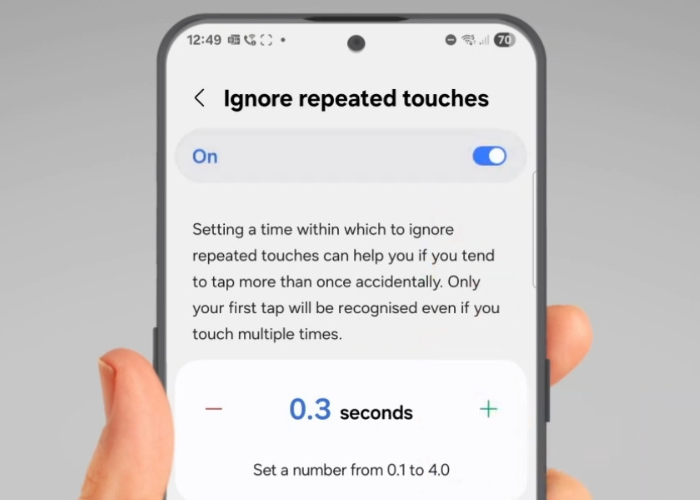
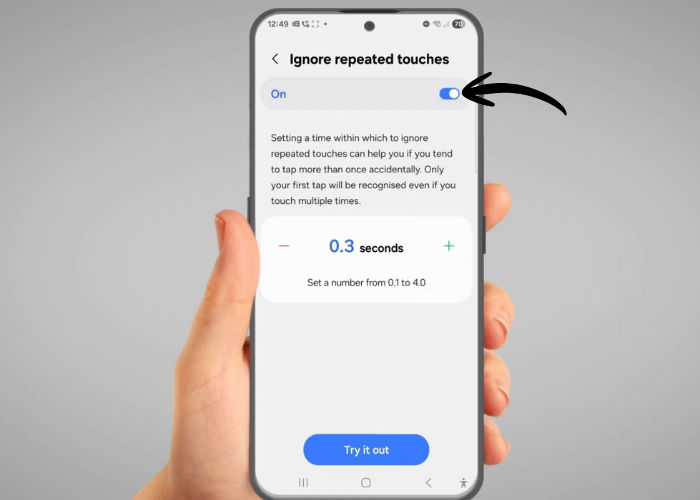
Now, 'Ignore repeated touches' allows you to adjust how repeated touches should be ignored.
12
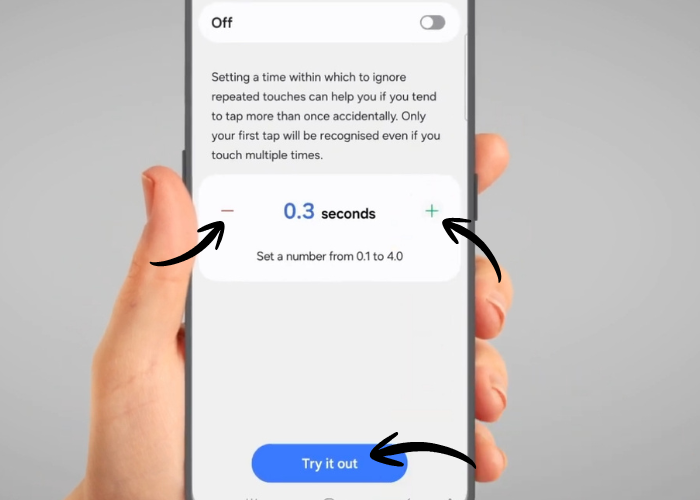
Use the plus and minus button to adjust the time. You can try the settings by pressing the blue button at the bottom.
13
Use the 3 circles to perform multiple taps. Only your first tap will be recognized, even if you tap again. After the first tap, you will have to wait for the time you selected, for following taps to be recognized.
14
To turn 'Ignore repeated touches' on, tap the switch at the top of the screen.

Meet our experts

Charley Landsman

Charley, with a background in teaching, has worked in both educational and community settings, specialising in helping older adults build confidence with technology. Her work has given her a real understanding of the challenges people face when learning new skills later in life, and she enjoys finding simple, practical ways to make technology feel less daunting.


She has created and delivered workshops on topics such as smartphone use, online safety, and everyday digital tools, always adapting her approach to suit different abilities and learning styles. Charley joined JC Explore in 2024, bringing with her a patient, approachable teaching style and a passion for making technology accessible to everyone.

Max Bianconi

Max has worked in the health and social care setting for the past twenty years, gaining extensive experience in supporting individuals and groups in residential and community settings across various roles.
Currently, Max manages JC Explore, a service that provides digital skills training for everyday life using mainstream and assistive technology. In addition to his role, Max serves as a trustee at the Karten Network, a charity dedicated to enhancing the quality of life and independence of adults with congenital or acquired physical, cognitive, sensory, learning disabilities, or mental health issues through a network of IT centres.
Max is passionate about assistive technology and its impact on people’s lives. He believes that promoting independence and social inclusion leads individuals to a more meaningful life.

Was this useful? Please let us know

The resources available are not, and are not intended to be, medical advice, which should be tailored to your individual circumstances.  The resources are for your information only, and we advise that you exercise your own judgment before deciding to use the information provided. Professional medical advice should be obtained before taking action. Full terms and conditions